By Daniel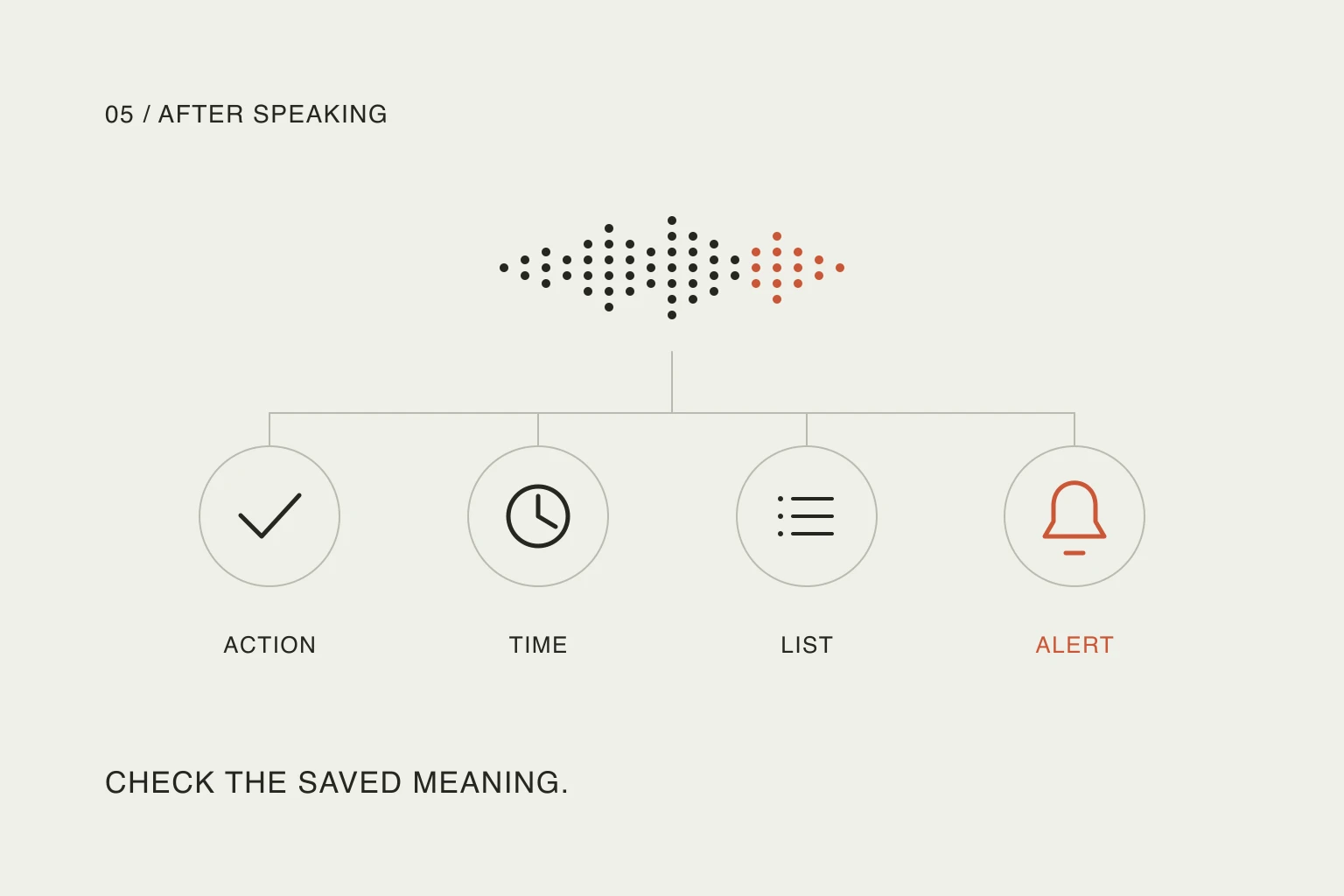
In this article
That distinction matters as voice becomes easier to reach. Todoist's September 24, 2026 changelog added Ramble entry points to task-list widgets on iOS and Android; its October 8 entry records a fix for editing text captured with Ramble. These are improvements to an existing feature, not a new launch this week.
This is a review of current documentation with a worked example, checked on October 22. We have not measured recognition accuracy, notification delivery or time saved across devices. The practical question is whether speaking leaves you with less work after correction, not merely less typing.
Separate dictation, task capture and later editing
Three operations can start with a microphone and still produce different results:
Scroll sideways to compare →
| Operation | What you want at the end | What to inspect |
|---|---|---|
| Dictation | Your words in a text field | Did the wording survive? |
| Task capture | Separate actionable items with useful fields | Were the actions split and routed correctly? |
| Editing a saved plan | A specific change to existing items | Was the intended item changed without disturbing the rest? |
This is a way to evaluate a workflow, not a claim that every microphone supports all three.
Todoist's Ramble guide describes tasks appearing in a preview while you speak, with spoken corrections before you confirm. It supports fields such as dates, projects and labels, but lists custom reminders as unsupported. Its preview-editing instructions should not be read as a promise to rearrange any previously saved day through an ongoing conversation.
For a single short task, ordinary entry may already be enough. For several thoughts that arrive together, separating them into tasks may justify voice. For changing yesterday's saved decisions, first identify the editing tool and the exact records it can change.
Why “remind me” deserves its own check
The gap is concrete in this question from u/beratbayram, posted in July 2026:
If I try the same with Ramble, it instead sets 8 PM as a date, not as a reminder.
— u/beratbayram, r/todoist.
This is one user's experience, not an accuracy estimate. It identifies a useful acceptance test: did the app save a time, or also set the notification you meant? Read the replies as dated discussion, not current pricing advice.
Todoist's reminder documentation explains that automatic reminders depend on a task's date and time plus your reminder settings. Check the offset and notification channel there. If you need an alert at a different moment, inspect the reminder itself rather than assuming the task time expresses both intentions.
The current plan comparison lists task reminders in Beginner and custom task reminders in Pro. That distinction is more useful than the blanket claim that notifications always require a paid plan.
Try a harmless reminder before entrusting the workflow with something important. Seeing the correct task is one check; receiving its alert on the intended device is another.
Try two tasks with different meanings
Use a small, synthetic example rather than dictating your whole week during setup. Create or choose a harmless test project first. Then try:
Add “Call the repair shop” tomorrow at 10 AM in my Home project. Add “Compare two desk lamps” to the same project with no date.
These are illustrative inputs, not a recording or a claim about the output of a live Ramble session. The desired result is deliberately simple:
Scroll sideways to compare →
| Item | Expected saved meaning |
|---|---|
| Call the repair shop | One task, tomorrow's actual date, 10:00, Home project |
| Compare two desk lamps | One task, no accidental date, Home project |
| Alert for the call | A separately checked reminder and delivery setting |
The undated item is useful: it reveals whether the time from one sentence leaked into another. The shared destination tests routing without adding labels, priorities and durations all at once. Compare the preview with the intended result before confirming it.
Before confirming, try one correction: change the call to 11 AM. Save the tasks, then check that there is one call task at 11 AM, one undated lamp task and the reminder you intended. This is a suggested personal test, not a measured result. If the output is wrong, record the field that failed before trying a longer prompt.
Correct the smallest part that is wrong
Repeating the entire request can introduce another opportunity for duplicates or altered details. Choose a correction based on the saved result:
Scroll sideways to compare →
| What you find | Smallest useful response |
|---|---|
| Correct task, wrong date | Change the date on that item and recheck its time |
| Correct wording, wrong project | Move that item to the intended destination |
| Correct time, missing alert | Inspect reminder settings and the task's reminder |
| Two copies of the same action | Identify the intended copy before removing the duplicate |
| Unclear or combined actions | Rewrite the title or split the work deliberately |
These are editorial suggestions for reducing repair work, not measured rankings of input methods. If ordinary editing fixes a field reliably, use it. Choose whichever route fixes the saved field with the least effort.
When the change affects the rest of your schedule, switch from capture to replanning the remaining day. “Create this task” and “move only this task, preserving the others” need different checks.
Check the cost of keeping voice convenient
As of this review, the Ramble guide says Beginner and Pro Legacy accounts receive ten monthly sessions shared with Task Capture Assist. Pro and Business remove that monthly limit, subject to rate limiting. Ramble needs an internet connection; some attributes, including duration and deadline, require a paid plan.
Those conditions matter if voice becomes your default entry route. Check your own account before building a routine around it. You can assess value without a stopwatch: are you regularly opening the task afterward to repair the same field? Is speaking comfortable in the places where you capture tasks? Can you still enter something when connectivity is poor?
Keep additional detail only when it helps you act. A short title can hold the action, while a return note keeps the next step visible after an interruption. Dictating a long transcript into every task may save typing while making the list harder to scan.
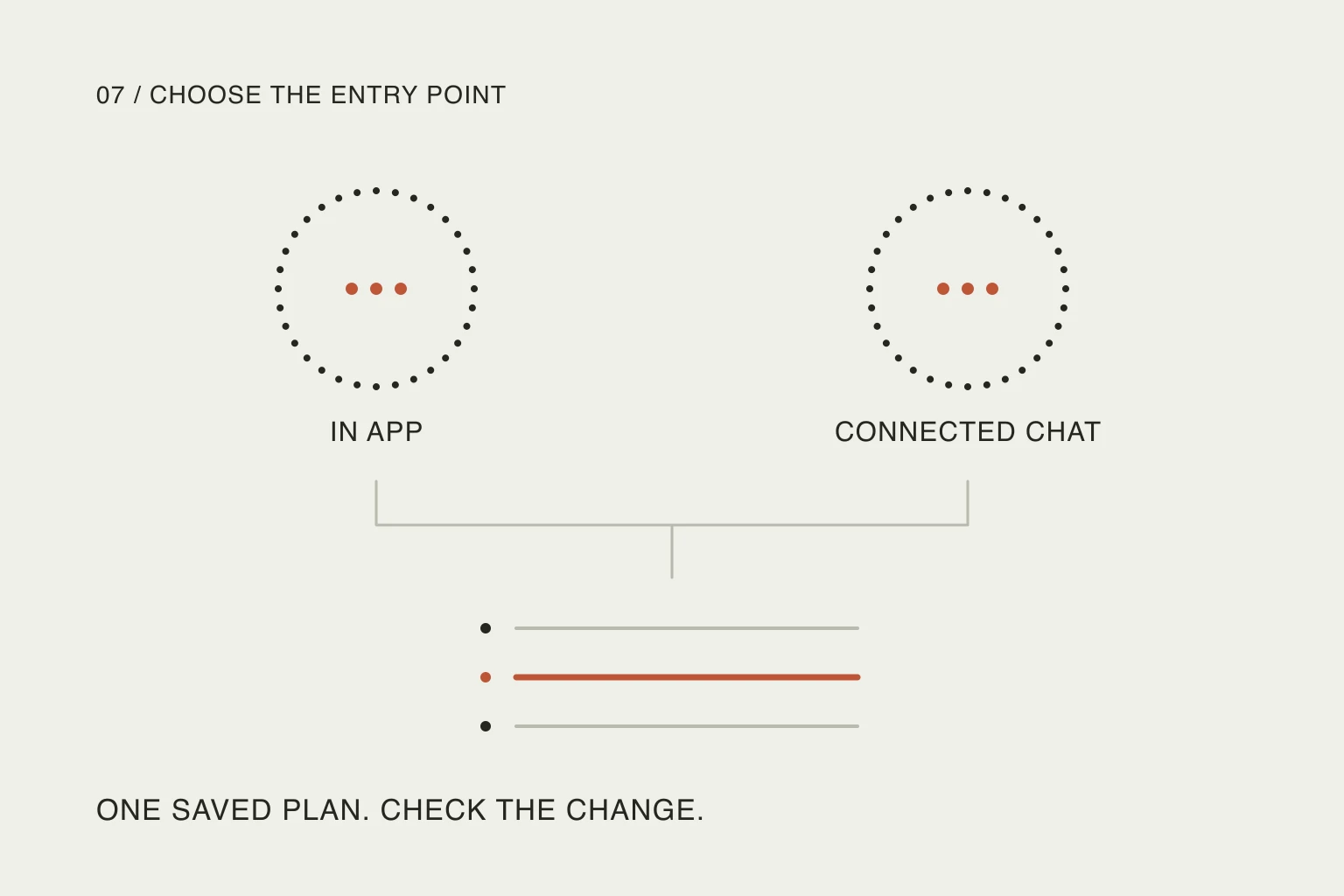
Nowrill takes a different approach: the conversation stays in a connected external assistant, and the web planner displays the saved plan. That does not make voice an inbuilt Nowrill feature, and it does not remove the need to verify an edit. Choose the workflow whose saved result is easiest for you to trust.
Useful resources
- Ramble's current guide — check supported fields, capture corrections, platform entry points and session limits before setting up a routine.
- Todoist reminder settings — distinguish automatic reminders from individually configured alerts and inspect delivery options.
- Todoist's plan comparison — check which reminder and capture capabilities your account includes; this article does not quote a subscription price.
- Todoist's 2026 changelog — use dated entries to check whether a capture or editing issue has changed since an older discussion.