By Daniel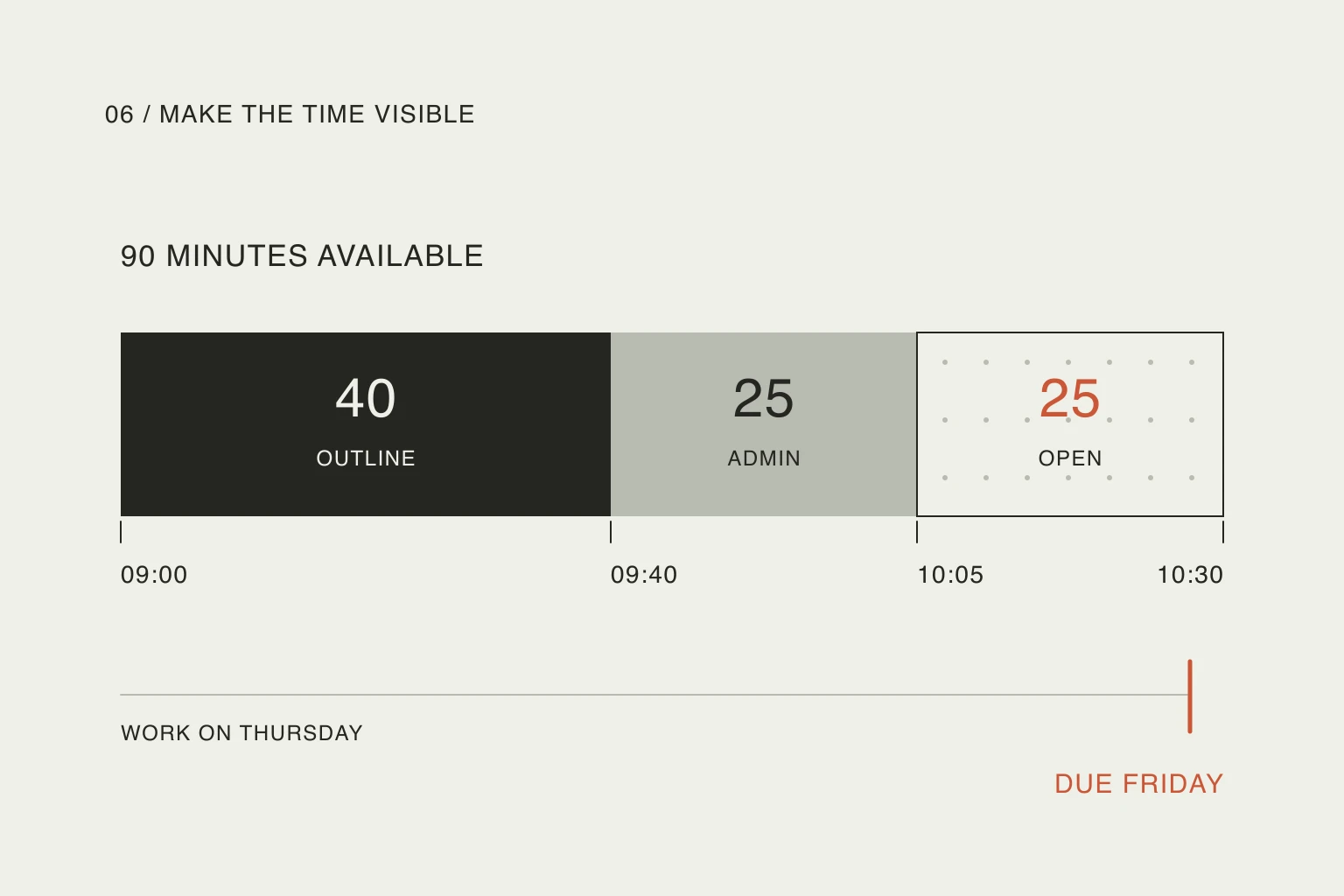
In this article
Google announced task time blocking on November 17, 2025, with availability including personal Google accounts as well as Workspace. This is an established capability, not a new October 2026 launch. It is worth revisiting because the same task can now express several intentions that are easy to confuse.
The setup below follows Google's computer documentation, checked on October 22, 2026. The schedule is an invented example, not a live account test. Mobile controls can differ; the purpose is to decide what each field should mean before using it.
Decide whether you need a reminder or working time
Start with the decision the item is meant to help you make. “Remember to return the book” and “Spend forty minutes comparing insurance documents” do not need identical amounts of calendar space.
Scroll sideways to compare →
| Your intention | Useful representation | Question to answer |
|---|---|---|
| Remember an action | A task with an appropriate date or reminder | When do I need to notice it? |
| Work on something | A task with an estimated working interval | How much time am I setting aside? |
| Meet another person | An event with the agreed time | What commitment must I preserve? |
| Finish by a boundary | A deadline attached to the work | When must the result exist? |
These are planning choices, not automatic classifications. A quick errand can still require substantial travel. A long project may need several work sessions before its deadline. The label alone cannot supply the missing estimate.
For a useful first pass, choose one task that genuinely consumes time. Leave the rest of your existing system alone until you understand how that block behaves.
Set up one block with a separate deadline
Imagine that you need to prepare a short report by Friday. You intend to draft its outline on Thursday morning. The outcome and the session are related, but they are not the same promise.
Google's computer help says to select an empty calendar slot, choose Task, enter the settings and save. The task can have a start and end time; its deadline is a separate date displayed in the all-day area. Advanced settings include Free or Busy availability. Do not disturb and automatic meeting decline are limited to work or school accounts, so do not expect those controls on a personal account.
For the example, the intended values are:
- Task: Draft the report outline.
- Work interval: Thursday, 09:00–09:40.
- Deadline: Friday.
- Availability: Busy, if you mean to protect this interval when others check your availability.
This is a suggested configuration, not evidence that Google has evaluated the estimate. Forty minutes may be enough for an outline and insufficient for the whole report. Naming the smaller deliverable makes the block easier to assess afterward.
After saving, inspect the interval and deadline separately. Friday should remain the final boundary; Thursday morning is the time you have chosen to work. If you move the session, check that you did not accidentally change the deadline too.
Do not let a default duration estimate your work
A discussion around Google's earlier rollout illustrates why a convenient default can still be misleading:
I wish they would allow you to have a different default duration for Tasks vs. Events.
— u/Private_Gump98, r/GoogleTasks.
The author describes task blocks inheriting a duration they preferred for events. This is a dated personal report, not confirmation of a current bug or evidence that everyone wants shorter tasks. Its useful lesson is smaller: a default can describe how you usually schedule meetings without describing the task you just added.
Inspect the end time before moving on. If a five-minute action occupies an hour, the calendar may overstate the work. If a ninety-minute task occupies fifteen minutes, it may leave room that is not really available. Neither case requires a different planning philosophy; it requires an estimate you recognize as your own.
Avoid copying undocumented tricks from older replies to force a particular display. Use the settings present in your current app and verify the saved result.
Check the arithmetic before filling the gap
Now suppose your available window is 09:00–10:30. You allocate forty minutes to the outline and twenty-five minutes to admin. That leaves twenty-five minutes:
90 available − 40 for the outline − 25 for admin = 25 minutes remaining.
The remaining space is useful. It can absorb a small overrun, a break or the transition to your next commitment. It is not another hour available for a large task just because that task is important.
Scroll sideways to compare →
| Part of the morning | Interval | Minutes |
|---|---|---|
| Report outline | 09:00–09:40 | 40 |
| Admin | 09:40–10:05 | 25 |
| Unallocated time | 10:05–10:30 | 25 |
These times are synthetic and intentionally simple. We are checking capacity, not recommending that every morning should be divided this way.
If the 10:30 commitment is elsewhere, the unallocated time may already belong to the journey. Work backwards from the arrival requirement using the travel-time guide. If the journey does not fit, shorten or move the work; do not hide the conflict by reducing its visual block without changing the task.
Treat Busy as a decision about availability
Select Busy when you intend to reserve the interval. Select Free when you want to keep the item in your own plan while remaining available for another commitment.
Availability and disclosure are separate choices. Google's visibility guide explains that a timed task marked Busy can appear to people who can view your calendar, while access to its details depends on permissions and the task's visibility setting. Inspect those settings rather than assuming a visible block must expose its title.
Free does not mean the work takes no effort, and Busy does not guarantee uninterrupted attention. The estimate still has to fit the day; the status communicates how you intend to use that interval.
Choose deliberately before testing the workflow with other people. For an individual planning trial, inspecting your saved settings is enough; there is no need to send invitations or change someone else's calendar.
Review the result before repeating it
At the end of the interval, ask what actually changed. Was the outline drafted? Is another session needed? A completed work period and a completed result are different signals; see the guide to manual and timer completion if those meanings have become mixed.
Try a single occurrence before turning a tentative estimate into a recurring routine. Google notes that only a limited number of future recurring tasks appear on the grid, with later occurrences appearing over time. A missing distant occurrence is therefore not, by itself, evidence that the series disappeared.
You may find that Calendar and Tasks already provide the structure you need. If you prefer discussing changes with an external assistant, the Nowrill web planner offers a place to display that saved plan. This guide does not describe a Google Calendar synchronization feature in Nowrill. Keep one clear home for each commitment rather than maintaining two competing copies of the same schedule.
Useful resources
- Google: create and manage tasks in Calendar — inspect current computer instructions, the difference between a deadline and working time, and account-specific settings.
- Google's original time-blocking announcement — check the November 2025 launch context and account availability rather than treating a refreshed tutorial as a new release.
- Google: task visibility — check who can see a timed task and how its details differ from a busy interval.
- Google: manage repeating tasks — understand occurrence visibility and the scope of edits before changing a recurring routine.