By Daniel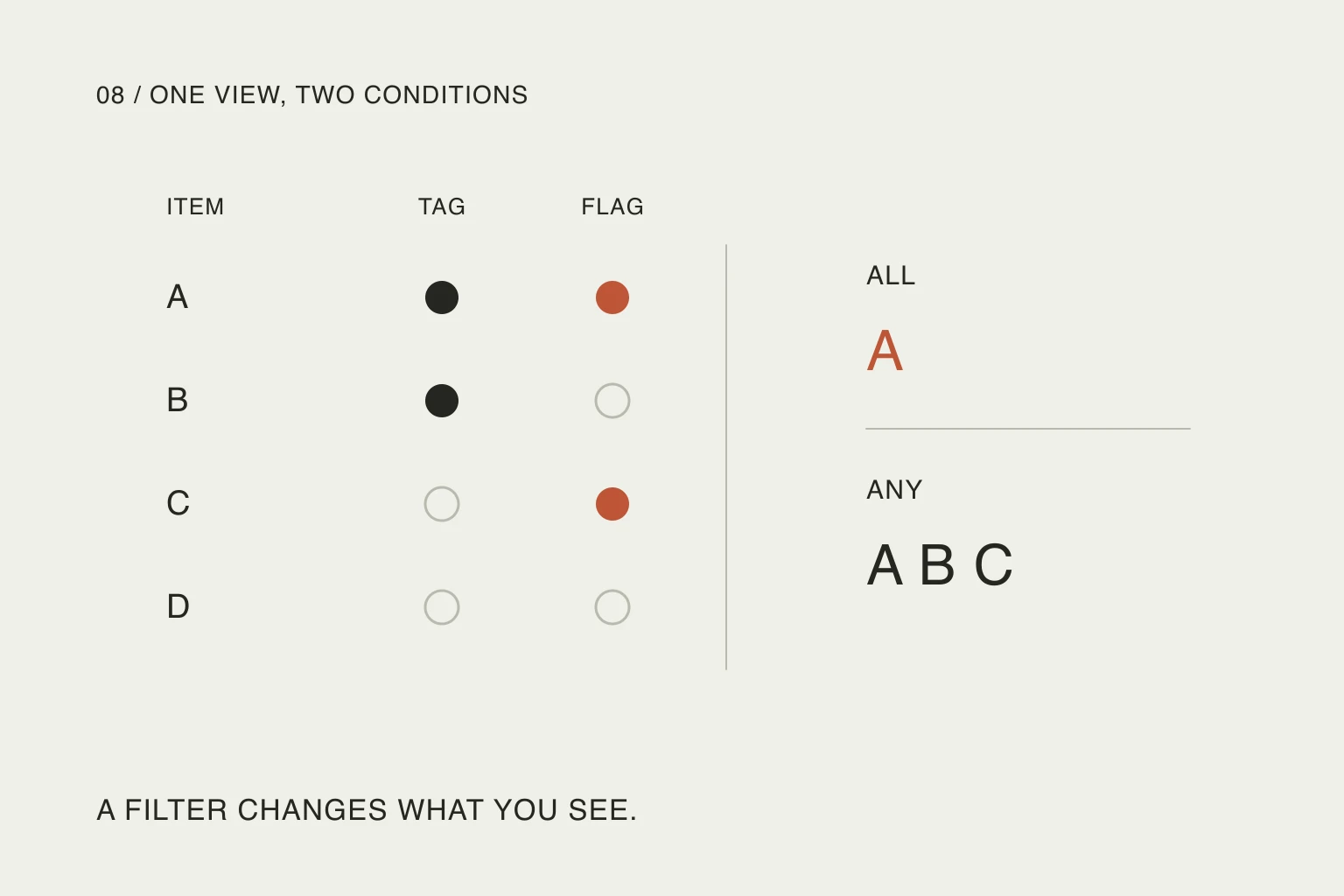
In this article
This is a practical configuration guide based on Apple’s current documentation, checked on October 23, 2026. Smart Lists are an established feature, not a new release. The examples below are invented tasks and expected filter results, not a recording of a live iPhone test.
The goal is a view you can keep useful without turning every new reminder into a classification exercise.
Notice when customization becomes another task
A September discussion captures the tradeoff well:
I have seen that tagging things helps to filter them, but that seems like extra steps that over complicate a system I’m trying to turn to in order to reduce complications.
— u/bidless71 in r/AppleReminders. This is one person’s experience of setup effort, not evidence that tags are generally unhelpful. We are not adopting the post’s other feature claims or community automation suggestions.
The distinction is between organizing for a purpose and organizing because the app permits it. A tag earns its place when you use it to find something at a meaningful moment. Five overlapping labels that you never consult create more decisions without necessarily helping you act.
Write the intended question before naming a new view. “What can I collect on this trip?” is easier to evaluate than “Personal productivity.” You can tell whether the first one is showing the right items. The second can grow indefinitely.
Try the built-in views first
Apple’s Smart Lists guide describes Today as including today’s scheduled items and overdue items, Flagged as collecting flags, and All as spanning your lists. The documented full feature set requires updated iCloud reminders.
If your question is simply “what have I flagged?”, start with Flagged. Adding a second view with the same rule creates another place to look, not a more precise decision.
Also separate seeing a task from changing its commitment. An overdue task appearing in Today does not mean you deliberately promised to finish it today. Review whether it still belongs in the day rather than interpreting visibility as a fresh scheduling decision.
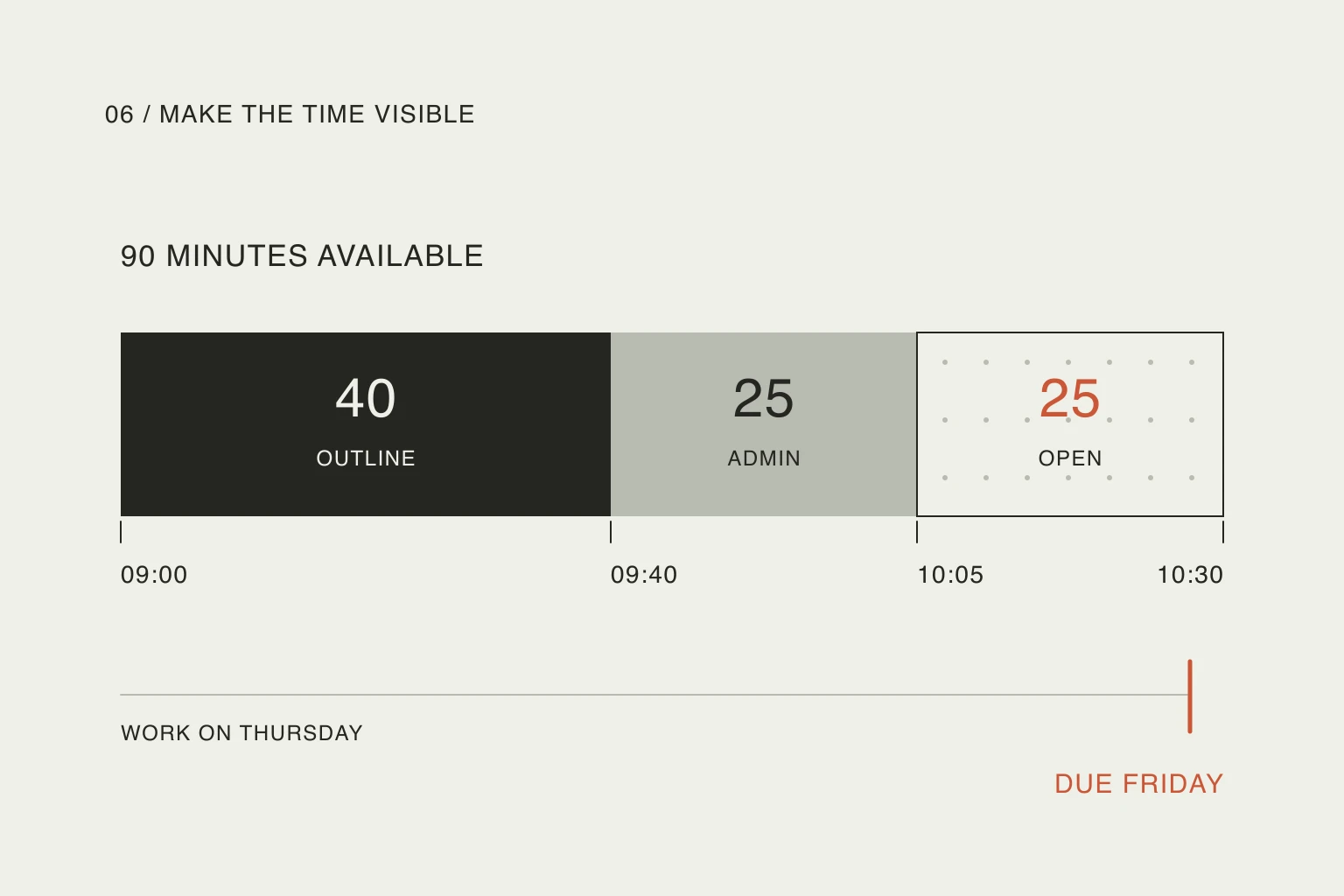
That distinction matters when there is more work than available time. A filtered list tells you which items match; it does not tell you whether they fit. For that separate question, estimate the work and make the time visible.
Give one custom view a clear purpose
Suppose you want an Errands to do view spanning several ordinary lists. For this example, #errands means “requires an outing,” and a flag means “I have chosen to handle this soon.” These are your conventions, not meanings imposed by Apple.
Use four harmless test items:
Scroll sideways to compare →
| Item | Has #errands | Flagged |
|---|---|---|
| Return library book | Yes | Yes |
| Buy a bulb | Yes | No |
| Send receipt | No | Yes |
| Compare chairs | No | No |
The desired outing view contains only Return library book. Buy a bulb is an errand, but you have not chosen it for this outing. Send receipt matters soon, but it does not require going out. Compare chairs matches neither condition.
Apple’s creation instructions use Add List → List Type → Smart List → Edit Filters. Choose the tag and flag conditions, and require all selected filters. Give the view a name that describes the decision. Controls may differ on older software, so use the guide’s version selector if your screen differs.
For tags themselves, Apple’s organization guide describes adding them with the Tag button; tags require reminders in your iCloud account. Check that the tag is actually attached to the item before expecting the filter to use it.
Check what ALL and ANY really select
Apple allows custom views to match any or all selected filters. For our invented records, the logic is:
Scroll sideways to compare →
| Rule | Expected items | What the view answers |
|---|---|---|
| #errands AND flagged: ALL | Return library book | Which chosen items need an outing? |
| #errands OR flagged: ANY | Return library book; Buy a bulb; Send receipt | Which items are errands or flagged for any reason? |
Neither rule is inherently wrong. They answer different questions. Choosing ANY because it sounds more inclusive can quietly bring desk work into an outing list. Choosing ALL without understanding it can make an unclassified item disappear from that view.
This table is a worked Boolean example, not an app performance result. You can verify the rule with these disposable items before applying it to your real reminders. Inspect both an item that should appear and an item that should not. A list showing one plausible task is insufficient evidence that every condition is correct.
Test the task you capture in a hurry
Now add a fifth imaginary item, Collect repair, without a tag or flag. You intend to handle it on the outing, but the saved fields do not express that intention. Our custom filter has no basis for including it.
That is the main maintenance cost of this setup: you must classify an errand at capture or during a later review. Decide which moment is realistic for you. If adding two properties every time feels excessive, use an ordinary errands list or a single flag instead.
Keep access to the ordinary list or broader view so you can find fresh captures. When something seems missing, check its saved fields and the filter before recreating it. Re-entering the task can leave two copies while preserving the original mismatch.
The useful personal test is not “can I design this view?” It is “will this still show what I need after several rushed additions?” If the answer depends on a routine you will not follow, simplify the rule rather than adding another automation to compensate.
Keep visibility separate from execution
Do not give every errand a due date merely to make it appear in Today. A date should express a timing decision you recognize. An outing view can collect candidates; choosing the route and allowing travel time are separate steps.
Likewise, avoid converting an established list just to experiment. Apple’s guide says conversion moves its items into the default list and tags them with the old list’s name. Shared lists cannot be converted. Creating a new test view is easier to understand than changing where existing items live.
A good stopping point is one view you consult, with rules you can explain in a sentence. Keep it if it helps you choose the next action and survives ordinary use. Remove unnecessary conditions if maintaining the view becomes the task.
A Smart List also does not transfer a plan into another service. If you use Nowrill’s web planner, its plan is created and edited through a connected external assistant; this article does not describe an Apple Reminders sync.
Useful resources
- Apple’s Smart Lists guide — check built-in views, custom filter matching and the consequences of converting a list. Select your installed iOS version.
- Organize reminders on iPhone or iPad — follow the official tag and list instructions, including which features require iCloud.
- Tag items in Reminders, iOS 26 guide — inspect tag behavior on that version, including how deleting a tag affects Smart Lists that use it.