By Daniel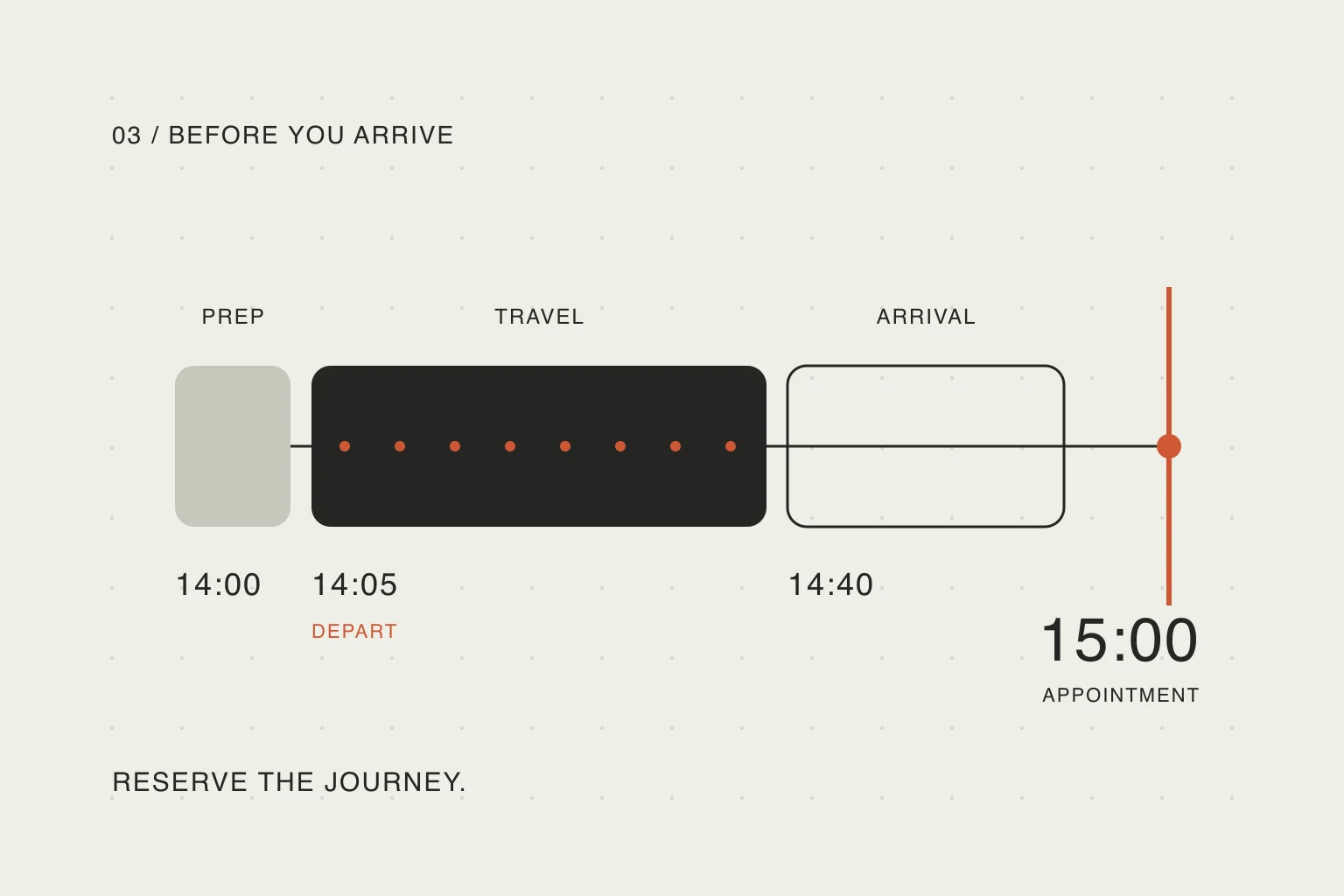
In this article
A 15:00 meeting might require you to stop working at 14:00. If the calendar only shows the meeting, that preceding hour looks available even though you have already committed it to packing up, travelling and finding the room.
You can fix this with a calendar and a map. The worked example below shows the calculation; the video demonstrates the route setting, and the resource links take you to the current Google and Apple instructions.
Check the route for the journey you will actually take
Start with the destination, appointment time, expected starting point and transport mode. Use the office as the origin if that is where your previous commitment ends. A route from home answers a different question.
On a computer, open directions in Google Maps and change Leave now to Arrive by. Choose the intended date and arrival time. Use Depart at when your departure is fixed instead. Google says future-trip estimates account for traffic and transit schedules at the planned time. Its documented option requires sign-in, one destination, and a driving or transit route. Google Maps: plan future trips.
Treat the result as an estimate. Check whether it includes the walk to the stop, a transfer or the final walk. Add only what is missing: counting a walk twice creates unnecessary padding; leaving parking out creates a hidden deadline.
For the mobile setting, Google's own Maps tips, section 6 explains how to set a departure or arrival time from the route menu. The short demonstration below shows the mobile control.
Watch the arrival-time setting in use
This short walkthrough by Solution Lab shows where to set a departure or arrival time in the Google Maps mobile app. The relevant steps begin around 0:24. It is an independent demonstration, not a Google tutorial; use the official guides above for current availability and limitations, as app layouts can change.
After watching, check one real journey. Record the estimate and which parts of getting to the appointment it leaves to you. A route duration is an input to your plan, not the entire preparation-and-arrival window.
Calculate both when to leave and when to stop working
Here is an illustrative example. A workshop starts at 15:00. You allow 25 minutes driving, ten for parking and walking, ten for uncertainty, and ten for check-in. You also need five minutes to pack up.
Scroll sideways to compare →
| Time | What you reserve |
|---|---|
| 14:00–14:05 | Stop work, pack and get ready |
| 14:05–14:40 | Drive, park and walk: 25 + 10 minutes |
| 14:40–14:50 | Contingency for a delay |
| 14:50–15:00 | Check in |
| 15:00 | Workshop starts |
Subtract check-in, contingency, parking and driving from 15:00: the departure is 14:05. Subtract preparation too: stop working at 14:00. Without a delay you expect to arrive at 14:40, leaving the contingency available before check-in.
Those two boundaries serve different purposes. The departure tells you when to be on the way. The stop-work time prevents you from starting another task while you should be getting ready.
Choose the allowance for uncertainty based on the journey and the consequence of being late. An unfamiliar entrance or an infrequent bus deserves a different decision from a familiar walk to a flexible coffee meeting. The example's ten minutes is a planning choice, not a universal recommendation.
Reserve the travel block without changing the meeting
Keep the workshop at its agreed 15:00 start. Add a separate preparation/travel block before it. In a shared calendar, mark that block busy if you need it to affect availability. Do not move the workshop itself to 14:05 and rely on remembering what that time really means.
This addresses the friction described in a Reddit discussion about travel time: reminders can tell you when to leave while the calendar still looks free. That account identifies a useful problem to solve; it does not establish how common it is.
If you use Calendar on Mac, its event details include a Travel Time menu. Apple also warns that travel time does not update automatically when you change locations. Check the journey again if your starting point changes. Follow Apple's location and travel-time guide for that workflow.
Use one clear representation of the journey. If you maintain both a calendar travel block and a task, decide which is authoritative and update the other when the appointment changes.
Check the next leg before filling the afternoon
A workshop ending at 16:00 does not make you available at home at 16:00. Reserve the return journey or the trip to your next stop before adding more work.
For consecutive appointments, compare the gap with the whole transition: leaving the first venue, travelling, and arriving ready for the second. If it does not fit, change a commitment or the travel arrangement. Making the label shorter does not create more time.
For errands, identify which stops have fixed opening hours and which are optional. An optional stop gives you something to drop when the trip runs long. If the delay has already happened, replan the rest of your day around the next fixed commitment.
Give your AI assistant the estimates and the boundaries
Once you have checked the route, make the edit specific:
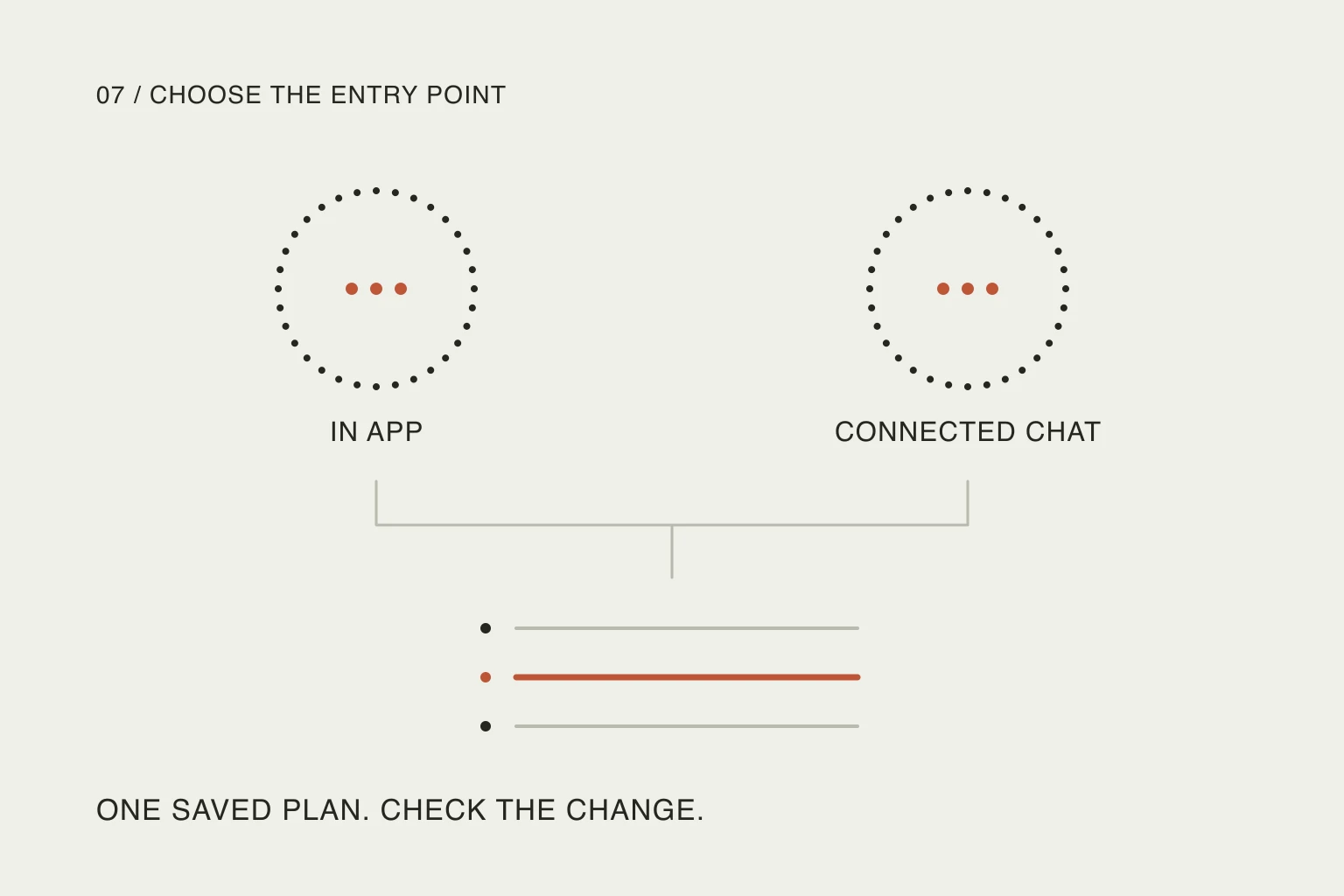
Keep my workshop at 15:00. I will leave the office by car. Allow 25 minutes driving, ten for parking and walking, ten contingency and ten for check-in. I need five minutes to pack up. Reserve this time before the workshop. Keep my other appointments unchanged. If anything overlaps, show me which flexible task needs to move.
In Nowrill, this conversation happens in your connected external assistant; the web planner shows the saved result. A Google Maps link can retain a destination, but it is not a live traffic feed. Route estimates depend on an available, configured integration. If the assistant cannot obtain one, give it the estimate you checked instead of asking it to guess.
Check the resulting appointment time, departure boundary and moved tasks. Open the Nowrill web planner to keep the journey beside the rest of your day.
Useful resources
- Google Maps Help: plan future trips — the official desktop steps and restrictions for departure/arrival estimates. Start here if the control is missing.
- Google's Maps tips — section 6 covers the mobile arrival-time setting; useful when you are planning from your phone.
- Apple Calendar: add location and travel time — instructions for adding the journey to an event on Mac, with the caveat about changed locations.
Before your next appointment, check one thing: is the time before it genuinely free, or does it already belong to getting there?